


What To Do If You Clicked a PDF and Installed Unwanted Software
A real situation and how to fix it fast
A few of our clients recently ran into the same problem, so we want to walk everyone through exactly what happened, why it matters, and how to undo it. This is not a scare tactic. It is a pattern we are seeing, and the fastest defense is simply knowing what it looks like.
How it started
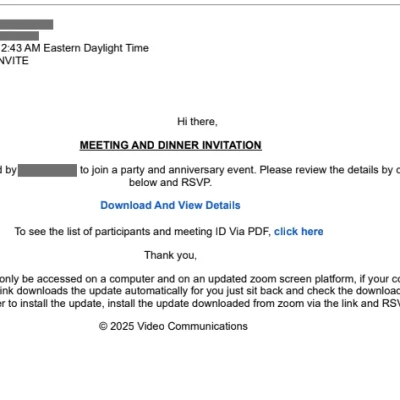
Each case began the same way. An email arrived that looked ordinary enough to open. Two examples we reviewed:
- An invitation to a “party and anniversary event” with a “Download And View Details” button and a “click here” link to see the guest list.
- A message that appeared to come from Google Drive, saying a document had been shared, with an “Open” button leading to an encrypted PDF.
Both had the same setup. A short message, a sense of familiarity or urgency, and a button or link asking the person to download something to view it.
Here is the detail that matters most: you should never have to download a PDF to view it. A real PDF opens directly in your browser or your email preview. If a file asks you to download and install something before you can see it, stop.
In each of these cases, the attachment did not open a document when clicked. It downloaded and installed a program called ScreenConnect, a legitimate remote access tool that attackers have learned to disguise and misuse. The install landed in C:\Program Files (x86)\ScreenConnect and quietly enabled unattended access to the machine. From there, the attacker does not even need to be online watching. They can wait until the computer sits idle, then log in and move through whatever that account can reach, files, saved passwords, email, connected systems, all of it.

How to tell if this happened to you
Look for a small ScreenConnect icon in your system tray or taskbar, or check your list of installed programs and Windows Services for anything labeled ScreenConnect Client that you do not remember installing. If you clicked a link like the ones above and are not sure what happened next, treat it as if it did happen and work through the steps below.
How we remove it
- Stop the service first. Open Windows Services and look for ScreenConnect. There are usually two entries. Stop both. You will see the icon disappear from the taskbar once the service is stopped.
- Open PowerShell as an administrator, then run:
Get-Package -Name “ScreenConnect Client” | Uninstall-Package
When prompted, confirm with Y. This fully removes the software.
3. Verify it is gone. Check Services again to confirm the ScreenConnect entries no longer appear, and check the C:\Program Files (x86) folder to confirm the ScreenConnect folder has been deleted.

What to do after the software is removed
Removing ScreenConnect closes the door, but it does not undo whatever access the attacker may have already had. Once the software is confirmed removed, take these steps immediately:
- Change every password on that machine, starting with email and anything financial.
- Update your security questions, since those answers may have been visible during the time access was open.
- Review any mailbox rules, forwarding settings, or login recovery options for changes you did not make. Attackers often quietly forward email or add a backup recovery method so they can get back in later even after the password changes.
- Let us know so we can check the account and the machine for anything else that may need attention.
The one habit that prevents almost all of this
If an email is asking you to download a file in order to view it, pause. A real document opens. A real invitation opens. Anything that requires you to download, install, or update software before you can see the content is designed to bypass your instincts, not to inform you.
When in doubt, do not click. Forward it to us, and we will tell you in minutes whether it is safe. That one habit, pausing before you click, is still the single best protection any of us has, technology included.