


Blog
Web Apps vs. Desktop Apps: Which Choice Drives Better Business Efficiency?
4 Min ReadEver feel like your computer is crawling, even though it’s practically brand new? You open your browser, look at the top of your screen, and spot the likely culprit: you have 40+ browser tabs open.
Between checking emails, reviewing client files, tracking accounting, and jumping into video calls, modern business has slowly migrated inside web browsers like Google Chrome and Microsoft Edge. Many business owners assume that running almost an entire enterprise out of a web browser today is the most efficient way to operate.
At ADVYON, our mission is Connecting People. A major part of that mission is ensuring the technology connecting your team actually empowers them rather than creating daily bottlenecks and browser lag.
When evaluating web apps versus desktop apps, the best choice depends on your specific needs. Maximizing your team’s efficiency depends on using the right tool for the job. Here is a clear breakdown of how both formats operate, how to balance them, and why your software setup matters for your bottom line.
The Filing Cabinet vs. The Remote Warehouse
When explaining the difference between web apps and desktop apps to your team, use this simple analogy:

Web Apps: Imagine every time you need a document, you have to open a browser, type in a website, log in, and wait for the page to load. It is like driving down the road to a massive storage warehouse just to look at a file through a window. It’s convenient because you can access it from anywhere, but taking those extra steps all day long slows down your momentum.

Desktop Apps: This is like taking that exact same cloud warehouse and syncing a physical filing cabinet right next to your desk. The files are still safely backed up in the giant warehouse, but you can grab them instantly, work on them completely offline, and process heavy tasks at local computer speeds.
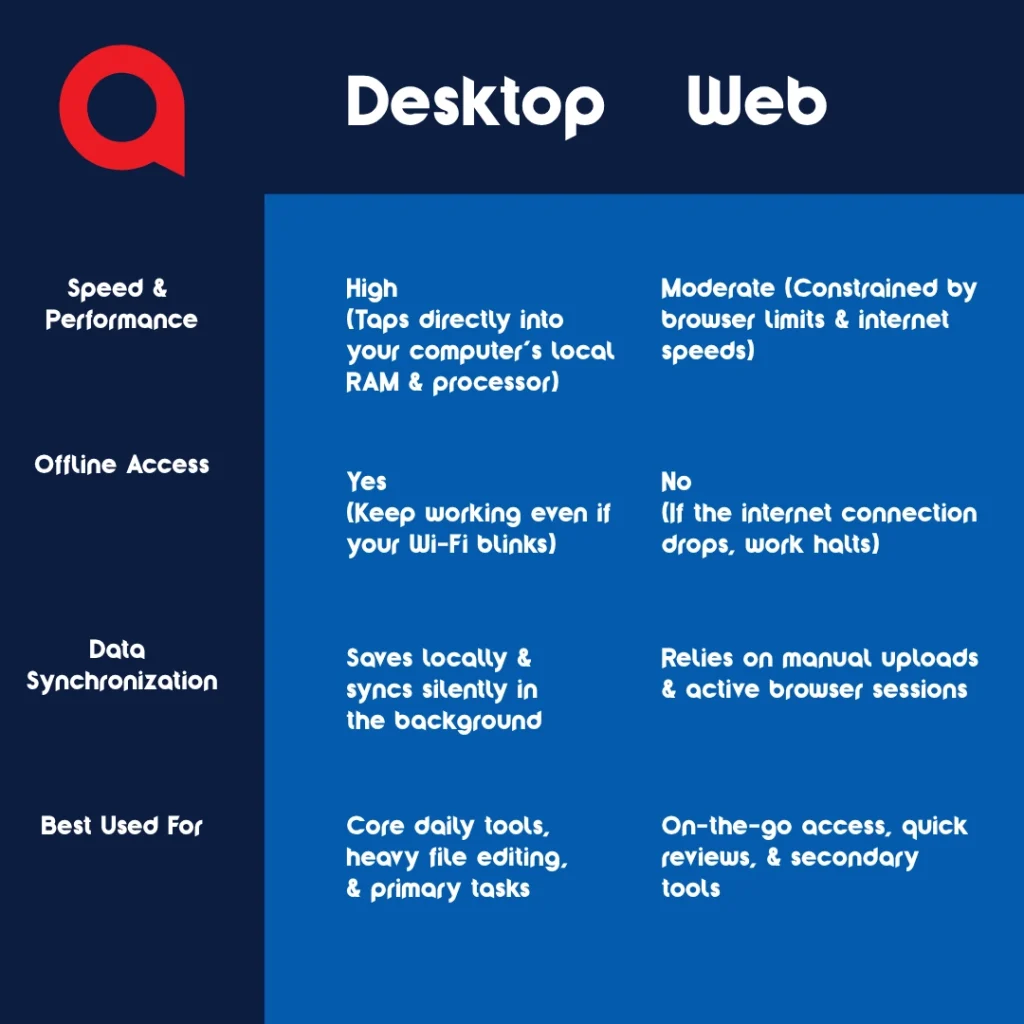
Web Apps vs. Desktop Apps at a Glance:
What Is a Desktop Application?
A desktop application is a software program installed directly onto your computer’s local operating system (Windows or macOS).
Key Advantages of Desktop Apps
- Raw Speed & Processing Power: Desktop apps utilize the actual hardware power (CPU and RAM) of your machine. They don’t rely on browser rendering speeds, making them lightning-fast for multitasking.
- Offline Resilience: If your office Wi-Fi drops for two minutes, work inside a desktop app doesn’t instantly wipe or lock up. You can keep typing, editing, and saving locally.
- System Integration: They integrate seamlessly with your local computer’s file structure, keyboard shortcuts, and connected peripheral hardware.
What Is a Web Application?
A web application is a software program you access entirely through an internet URL inside a web browser (like running Microsoft Outlook, Google Docs, or QuickBooks inside Chrome or Edge).
Key Advantages of Web Apps
- Zero Local Footprint: They don’t take up storage space on your computer’s local hard drive.
- Universal Access: You can log in from a laptop, a tablet, or a temporary computer at a conference and see the exact same interface.
- Instant Updates: Software providers update the app on their central servers, meaning your team never has to wait for a patch to install.
The Downside for Daily Operations
Because web apps run inside a browser tab, they face browser memory limits and depend on your active internet connection. If your team handles complex spreadsheets, dense PDFs, or toggles between dozens of open tabs, browser lag quickly accumulates into lost productivity and employee frustration.
Real-World Example: Microsoft Outlook vs. OneDrive
The contrast between web and desktop applications becomes obvious when looking at tools like Microsoft Outlook and OneDrive:
For managing daily email, Outlook on the Web is often superior to the traditional desktop application. The web version provides a direct, live window into your Microsoft 365 mailbox. It eliminates local mailbox sync delays, prevents indexing glitches, and ensures that what you see on screen is 100% current live data.
For file management, forcing employees to log into onedrive.com every time they need to open or edit a document creates massive friction. Setting up the native OneDrive Desktop Sync Client embeds cloud storage directly into Windows File Explorer or Mac Finder. To your team, cloud files look and feel like normal local folders—they open instantly, save locally, and silently sync to the secure cloud in the background.
Why an IT Partner Cares About Your App Setup
A standard reactive “break/fix” IT guy might tell you, “Well, the website loads, so your technology is working fine.”
At ADVYON, we look at the full organizational picture through our Smart People Processes. The way you configure your applications directly impacts three critical business areas:
Employee Productivity & Frustration:
Losing 10 to 15 seconds every time a file downloads or a browser tab reloads adds up to hours of lost productivity across an entire company every single month.
Proactive Security:
Managed desktop applications allow proactive security engines (like SentinelOne) to monitor software behavior on the computer with precision. Meanwhile, unmanaged web browsers remain a primary target for phishing scams and malicious links.
Plug-and-Play Readiness:
When ADVYON deploys new hardware for a client, our Tier 3 Project Engineers unbox, patch, and fully configure every core desktop application at our headquarters before it ever reaches a desk. Your team receives machines optimized for speed and security from day one.
Optimize Your Workflow with ADVYON
Optimizing your tech stack isn’t about choosing only desktop apps or only web apps—it’s about building a cohesive hybrid environment where every tool performs at its absolute best.
If your team is constantly fighting browser tab clutter, or you want to ensure your business data is structured for maximum speed and safety, let’s sit down and look at the big picture together.